Form view shows each statement in a Turtle file as a form, and every change you make is written back to the file as ordinary Turtle.
This guide picks up films.ttl where Write Turtle left it and edits the Film class schema as a form: it changes one field and adds another.
Switch the file to Form
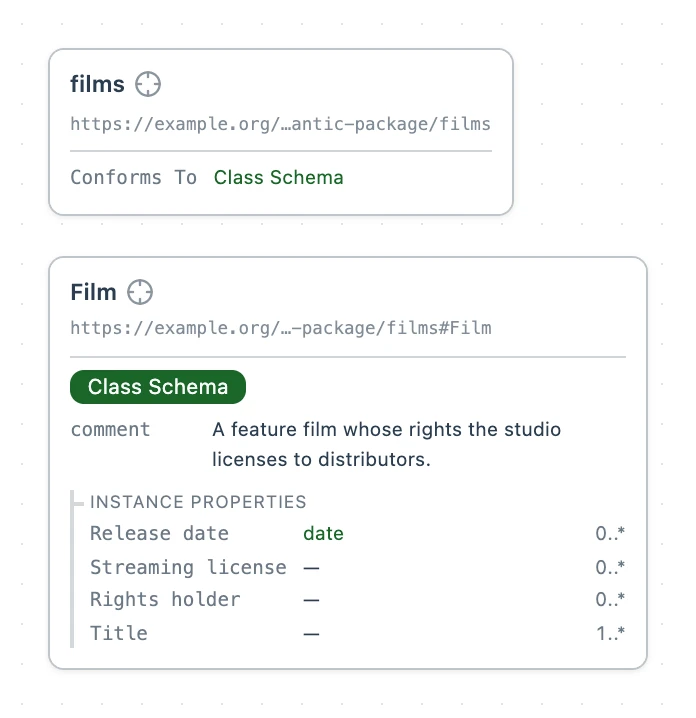
Open films.ttl and click Form at the right of the toolbar. Each statement in the file becomes a card.
Film's card is marked Class Schema. Its rows are the parts of a class schema: Label, Description, Extends, Properties, ID template and Hidden in graph. Properties lists the three fields from the file, Title, Rights holder, and Release date with a date chip.
Change a field
Click Title under Properties to open it. Its rows are grouped under Field, Value, How many, and Display and code: the Label is Title, the Path is dct:title, and Min count is 1.
Click the Description chip, The name the film is released under. Change the text to The name the film is released under in its home territory. and press Enter.
Add a field
Click + New beside Properties. A new Property shape opens below Release date.
- Click + beside Label, type
Streaming licenseand press Enter. The Path fills in asstreamingLicense, made from the Label. - Click the link icon in Path, Unlink to type your own ID. Type
dct:licenseand press Enter. - Click + beside Description, type
The license the film streams under.and press Enter.
Read the Turtle it wrote
Click Code at the right of the toolbar. The Title field's description reads as you changed it, and the form wrote the Streaming license field after Release date as another object of the same sh:property, after a ,. a sh:PropertyShape says the new resource is a field. This is films.ttl on disk.
@prefix xsd: <http://www.w3.org/2001/XMLSchema#> .
@prefix sh: <http://www.w3.org/ns/shacl#> .
@prefix rdfs: <http://www.w3.org/2000/01/rdf-schema#> .
@prefix svs: <https://pkg.semvia.io/semvia/core/meta-schema#> .
@prefix dct: <http://purl.org/dc/terms/> .
@prefix : <https://example.org/my-semantic-package/films#> .

<> dct:conformsTo <https://pkg.semvia.io/semvia/core/profiles/class-schema> ;
.

:Film a svs:ClassSchema ;
  rdfs:label "Film"@en ;
  rdfs:comment "A feature film whose rights the studio licenses to distributors."@en ;
  sh:property [
    sh:path dct:title ;
    sh:name "Title"@en ;
    sh:description "The name the film is released under in its home territory."@en ;
    sh:minCount 1
  ] ;
  sh:property [
    sh:path dct:rightsHolder ;
    sh:name "Rights holder"@en ;
    sh:description "The company that holds the rights to the film."@en ;
    sh:nodeKind sh:IRI
  ] ;
  sh:property [
    sh:path dct:issued ;
    sh:name "Release date"@en ;
    sh:description "The date the film was first released."@en ;
    sh:datatype xsd:date
  ], [
    a sh:PropertyShape ;
    sh:name "Streaming license"@en ;
    sh:path dct:license ;
    sh:description "The license the film streams under."@en
  ]
.
Edit one statement as a form
You don't have to switch the whole file. In Code view, each statement has Edit resource above it. Click the one above :Film and only that statement turns into a form, in place. The Code button at its right turns it back.