You can author graph content in Markdown. As you type, Folio maps the Markdown document's elements into RDF, the format Folio's graph is built on. This lets you see the document in Graph View, query its content, validate it against your domain model and link to it from other files.
To decide how your Markdown is interpreted, pick a mapping. A mapping determines how each Markdown element maps to RDF. Folio comes with default mappings for notes, domain models, taxonomies and vocabularies. For example, under the Taxonomy Map, a ## heading becomes a concept scheme and a list item becomes a concept. Mappings can be fully configurable: you can write your own and pick what each element becomes.
The document below is written under the Taxonomy Map, which reads it as a SKOS taxonomy. Graph shows the RDF Folio produces from it in Folio's Graph View, and Turtle shows that RDF as text.
# Product Catalog
::mappedBy Taxonomy Map

## Product Categories

- Electronics
  ::preferred label "Électronique"@fr

  Powered devices and gadgets sold in the catalog.

  - Computers
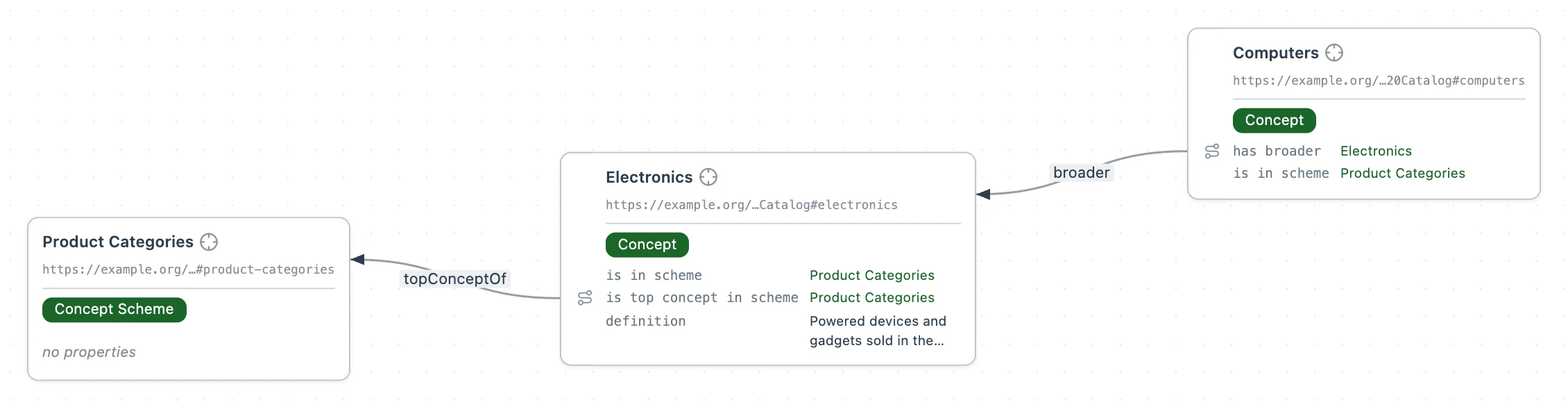
@prefix : <https://example.org/my-semantic-package/Product%20Catalog#> .
@prefix dct: <http://purl.org/dc/terms/> .
@prefix map: <https://pkg.semvia.io/semvia/folio/mapping#> .
@prefix rdfs: <http://www.w3.org/2000/01/rdf-schema#> .
@prefix skos: <http://www.w3.org/2004/02/skos/core#> .
@prefix svdoc: <https://pkg.semvia.io/semvia/core/document#> .
@prefix tax: <https://pkg.semvia.io/semvia/folio/taxonomy-schema#> .

<https://example.org/my-semantic-package/Product%20Catalog>
    a svdoc:Document , tax:Taxonomy ;
    dct:conformsTo <https://pkg.semvia.io/semvia/folio/profiles/skos-taxonomy> ;
    map:mappedBy <https://pkg.semvia.io/semvia/folio/taxonomy-map#TaxonomyMap> ;
    dct:title "Product Catalog"@en .

:product-categories a skos:ConceptScheme ;
    rdfs:label "Product Categories"@en .

:electronics a skos:Concept ;
    skos:prefLabel "Electronics"@en ;
    skos:prefLabel "Électronique"@fr ;
    skos:definition "Powered devices and gadgets sold in the catalog."@en ;
    skos:inScheme :product-categories ;
    skos:topConceptOf :product-categories .

:computers a skos:Concept ;
    skos:prefLabel "Computers"@en ;
    skos:inScheme :product-categories ;
    skos:broader :electronics .
Markdown syntax and meaning
Mappings read the Markdown elements below. What each one becomes in the graph depends on the mapping you pick.
- # Product Catalog
- A heading, level 1. The
#heading stands for the document: under every mapping Folio ships, its text is the document's title. Write one per document. - ## Product Categories
- A heading, level 2. Each
##heading is a section under the title. In the Taxonomy Map it becomes a concept scheme, in the Schema Map a class, and in the Note Map a section other documents can link to. - ### country
- A heading, level 3. Each
###heading is a section under the nearest##heading above it. In the Schema Map it becomes a property of the class above. - - Electronics
- A list item. An item under the heading above it. In the Taxonomy Map it becomes a concept in the scheme above, and its text becomes the concept's English preferred label,
"Electronics"@en. In the Vocabulary Map it becomes a term. - - Computers
- A list item, indented under another. An item under the item above it. In the Taxonomy Map, the item above becomes its broader concept. The Vocabulary Map ignores the nesting.
- Powered devices and gadgets sold in the catalog.
- A paragraph. Text under a heading, or under a list item's first line, describes that heading or item: a concept's definition in the Taxonomy Map, a class's or property's description in the Schema Map.
Folio special syntax
Folio adds two pieces of syntax to Markdown: fields (::) and links to entities ([[). The editor shows both by their labels, and the file stores the addresses behind them.
Fields (::)
A field is a line that starts with ::, then a link to a property, then one or more values:
::[property link] "value"
A field sets that property on the title, heading or list item it sits under, and each value adds one statement to the graph.
To add a field, type :: at the start of a line. A list appears showing the prefixed name, label and description of each property that fits what the field sits under, and Folio writes the link for the one you pick. If no vocabulary in the workspace defines the property, the field still adds its statement, and the editor shows the property's address instead of a label.
Fields and their values work the same in every mapping.
Field placement
Where you put a field decides what it describes. Under a list item, indent it to the item's text. It can follow the item, the item's paragraph or a blank line.
# Product Catalog
::mappedBy Taxonomy Map
<!-- Describes the document -->
::Creator "Merchandising team"

## Product Categories
<!-- Describes the concept scheme -->
::scope note Categories shown on the storefront.

- Electronics
  <!-- Describes Electronics -->
  ::notation EL-01

  - Computers
    <!-- Describes Computers -->
    ::notation EL-02
Field values
A field's value can take any of these forms:
<!-- Text: type it as is, or put it in quotes -->
::scope note Categories shown on the storefront.
::preferred label "Computers"

<!-- Text in a specific language, with commas between several values -->
::alternative label "Gadgets"@en, "Geräte"@de

<!-- A date or other typed value -->
::Date Issued "2024-03-01"^^xsd:date

<!-- A whole number or a decimal -->
::min count 1
::max inclusive 0.35

<!-- A boolean: true or false -->
::closed true
Unquoted text runs to the end of the line, so a comma in it is part of the text, and it is English if the property takes text in a language. An unquoted 2024-03-01 is plain text, not a date; ^^ names an XSD datatype. A value can also be a link to an entity: see Entity links.
In Folio vs. the file
The Folio editor shows a field by its property's label, and the file stores the property's address. Both are the same field:
<!-- In Folio -->
::notation EL-01

<!-- In the file -->
::[](http://www.w3.org/2004/02/skos/core#notation) EL-01
Examples
Under the Taxonomy Map, a field on a list item adds statements about that concept, one per value:
- Electronics
  ::alternative label "Gadgets"@en, "Geräte"@de
The field adds this to the graph:
:electronics skos:altLabel "Gadgets"@en ;
  skos:altLabel "Geräte"@de .
Under the Schema Map, the same syntax sets a rule on a property: every supplier has at least one country.
## Supplier

An outside organization that sells us raw materials.

### country

The country where the supplier is registered.
::name "Country"@en
::min count 1
In the graph, the Supplier class and its country property become:
:Supplier a svs:ClassSchema ;
  rdfs:label "Supplier"@en ;
  rdfs:comment "An outside organization that sells us raw materials."@en ;
  sh:property <Supply%20Chain%20Model/.well-known/genid/markdown/Supplier-country> .

<Supply%20Chain%20Model/.well-known/genid/markdown/Supplier-country>
  a sh:PropertyShape ;
  sh:path :country ;
  sh:name "Country"@en ;
  sh:description "The country where the supplier is registered."@en ;
  sh:order 0.0 ;
  sh:minCount 1 .
Entity links ([[)
A link to an entity is a CommonMark link to another entity in the workspace:
[](./document#entity)To add a link, type [[ in a field's value or in body text and pick the entity from the list of entities in the workspace, and Folio inserts the link.
Link placement
Where you put a link decides whether it adds to the graph.
- Laptops
  <!-- A field's value: relates Laptops to Computers -->
  ::has related Computers

  <!-- Body text: the link relates nothing -->
  Sold alongside Computers
In Folio vs. the file
The Folio editor shows a link by the entity's label, and the file stores the path to the entity. Both are the same link:
<!-- In Folio -->
Sold alongside Computers

<!-- In the file -->
Sold alongside [](./Product%20Catalog#computers)
Example
In a sales document under the Taxonomy Map, a link as a field's value relates Laptops to Computers in the Product Catalog:
- Laptops
  ::has related Computers
The field adds this to the graph:
:laptops skos:related
  <https://example.org/my-semantic-package/Product%20Catalog#computers> .
Mappings
A mapping decides what a document's headings and list items become in the graph. It is what makes one document a domain model and another a taxonomy: the syntax you type stays the same, and only the statements it builds change.
These are the mappings for Markdown documents:
None (default)
The default for any document is no mapping. Folio records its title and leaves the rest alone, and Graph View stays blank until you pick a mapping. Supplier onboarding.md has none:
# Supplier onboarding

## Approval

Procurement signs off before the first order.
Note Map
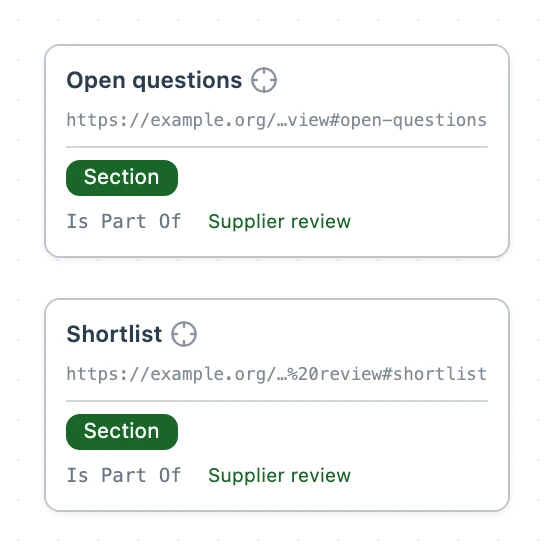
Ordinary prose, where every heading below the title becomes a section of the document that other documents can link to. See Graph your Markdown for a walkthrough. Supplier review.md has two:
# Supplier review
::mappedBy Note Map

## Shortlist

Halden Components and Brightline Devices passed the first audit.

## Open questions

Lead times for computers from both suppliers.
Schema Map
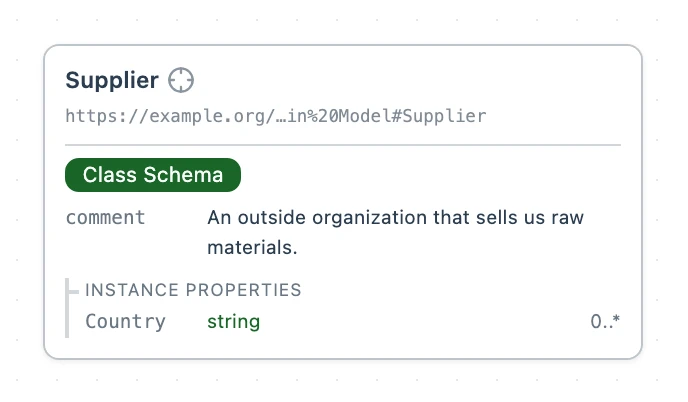
Classes, their properties and the rules every entity must satisfy, written in RDFS and SHACL: each second-level heading is a class, and the headings under it are its properties. See Classes for what a class can hold, written in Turtle. Supply Chain Model.md declares one class:
# Supply Chain Model
::mappedBy Schema Map

## Supplier

An outside organization that sells us raw materials.

### country

The country where the supplier is registered.
::name "Country"@en
::datatype string
Taxonomy Map
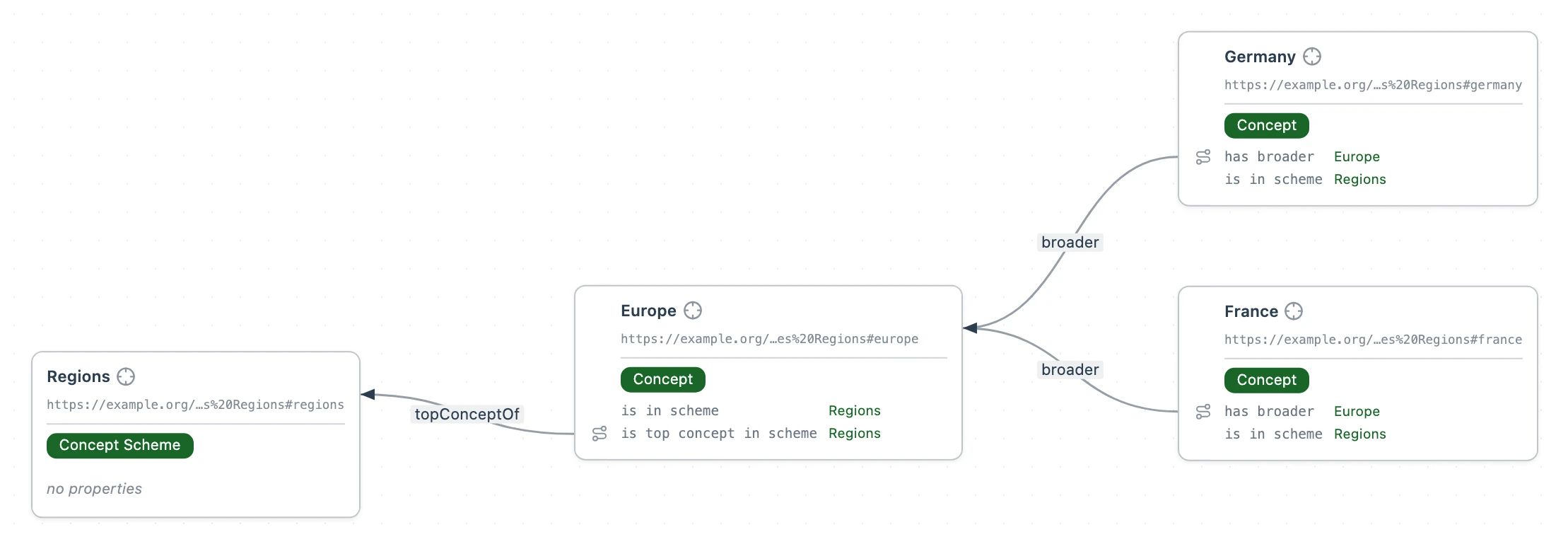
A tree of categories in SKOS: each second-level heading is a concept scheme, the list items under it are its concepts, and indenting an item places it under the one above. Under this mapping, Folio checks the document against the SKOS Taxonomy profile. See Taxonomies. Sales Regions.md places two countries under Europe:
# Sales Regions
::mappedBy Taxonomy Map

## Regions

- Europe
  - Germany
  - France
Vocabulary Map
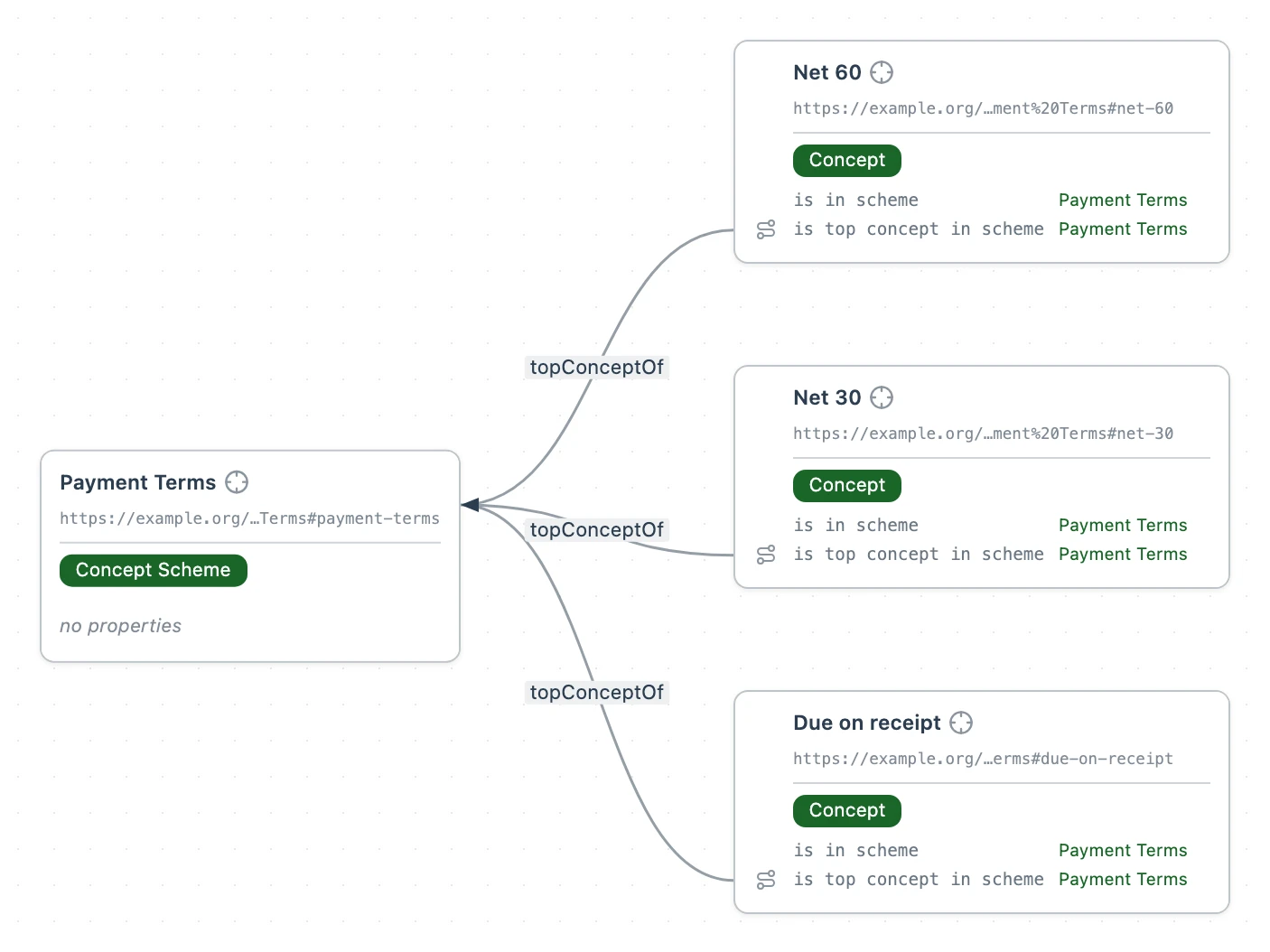
The same document as a taxonomy, but flat: indenting an item does not place it under another. See Taxonomies for how concepts work. Payment Terms.md lists three:
# Payment Terms
::mappedBy Vocabulary Map

## Payment Terms

- Net 30
- Net 60
- Due on receipt
Working with mappings
Pick a mapping from the mapping selector at the top right of the Folio editor. Folio writes the ::mappedBy field under the title, and picking None (default) removes it. Both forms are the same field:
<!-- In Folio -->
::mappedBy Taxonomy Map

<!-- In the file -->
::[mappedBy](https://pkg.semvia.io/semvia/folio/mapping#mappedBy) [Taxonomy Map](https://pkg.semvia.io/semvia/folio/taxonomy-map#TaxonomyMap)
A mapping is itself a document of rules. Open mapping definition, the compass beside the mapping selector, opens it. Write your own in the workspace and point a document at it.
A mapping for CSV, Parquet or Excel files is written in Turtle as an RML mapping, not with the selector's RML Mapping Map: see Query CSV, Parquet and Excel files.
Next: Query a JSON API Describe a web API, map its JSON onto entities in your domain model, and query it live.