Turtle is the plain-text format RDF is usually written in. Each statement is a triple: a subject, a predicate and an object. Folio's Turtle Editor completes each one as you type, adds the punctuation and prefix lines for you, and checks the file against the profile you pick.
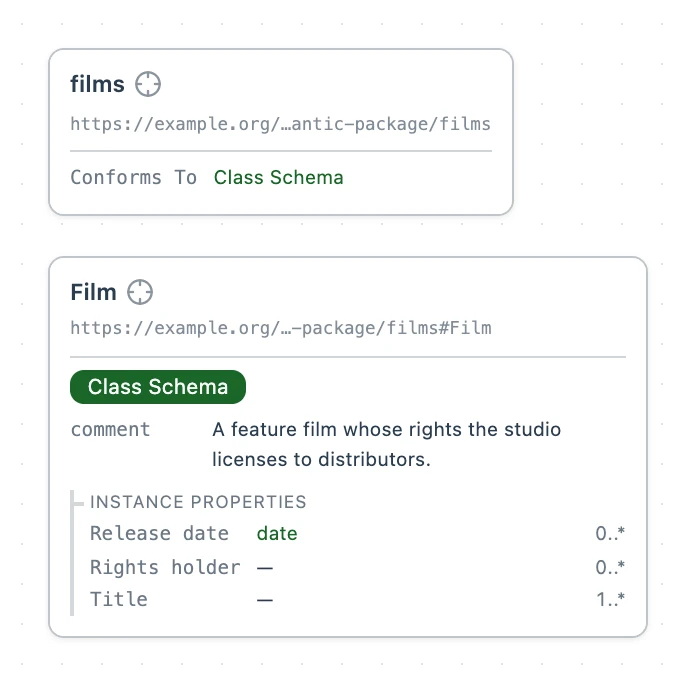
This guide builds films.ttl, a Film class schema checked by the Class Schema profile, from an empty file. The Form view guide goes on to edit the same class schema as a form.
Create the file
Select New file in the Explorer and pick Turtle, the format marked "Best for modeling". Folio adds Untitled.ttl to the Explorer with its name selected. Type films and press Enter.
The file opens empty. Its toolbar holds + Resource, View ▾, the Profile menu, and the Code | Form switch, which starts on Code.
Pick a profile
A profile is the set of vocabularies and shapes a file is written against. Folio warns about any term in the file outside of the selected profiles.
Open the Profile menu at the top right of the editor. It reads your workspace's name. Pick Class Schema. Folio writes two lines into the file, @prefix dct: and a <> dct:conformsTo statement that names the profile, and the menu reads Class Schema.
Name the file's namespace
Every name in the file is short for a full IRI, and the empty prefix : is the one you will use most. At the end of the @prefix dct: line, press Enter and type the line below. Folio draws a grey . at the end of the line; press Enter to write it.
The address is your package's base IRI followed by films#. On a new workspace the base IRI is https://example.org/my-semantic-package/; if your package has its own, use that. With this line, :Film means https://example.org/my-semantic-package/films#Film.
@prefix : <https://example.org/my-semantic-package/films#> .
Typeahead fills each slot
Below the <> statement, start a new one with the subject :Film, then a, Turtle's word for "is a". Type Cla and the list offers svs:ClassSchema. Press Enter to take it, then Enter again to take the grey ; after it.
In the predicate slot, type Lab. The list is headed PROPERTIES OF CLASSSCHEMA: the properties Class Schema gives a class, each with its label beside it. Take rdfs:label, then type "Film"@en as its object. Take the ;, type descr, take rdfs:comment and type "A feature film whose rights the studio licenses to distributors."@en.
The grey ; and .
After an object, Folio draws a grey ; beside it and a grey . on the line below. Neither is in the file until you take it. Press Enter to take the ; and start the next line of the same subject. The first ; you take writes the . below as well, so the statement is closed while you add to it.
When the last line is done, leave its ; and move on.
Add a field and fix its warnings
Each field of a class schema is a sh:property. On the line after the description, type Prop and take sh:property. Type [ and Folio closes it as []. Press Escape, then Enter, to open the brackets onto their own lines. Inside them, type Pa, take sh:path, then type title and take dct:title.
A warning triangle appears beside sh:path. Hover it for the two warnings the profile raises: the field has no Label and no Description. Fix both inside the brackets:
- Take the grey
;, typenam, takesh:nameand type"Title"@en. - Take the
;, typedescr, takesh:descriptionand type"The name the film is released under."@en. - Take the
;and typesh:minCount 1. Every Film now needs a title.
The warning triangle goes. Put the cursor after the closing ], press Enter to take its ;, and add two more fields the same way:
dct:rightsHolder(typerightsH), with the Label"Rights holder"@en, the Description"The company that holds the rights to the film."@en, andsh:nodeKind sh:IRI(typenodeK, thenI), so it points at a company.dct:issued, with the Label"Release date"@en, the Description"The date the film was first released."@en, andsh:datatype xsd:date(typedataty, thenda), so it holds a date.
Folio declares the prefix
Each time you take a name whose prefix the file doesn't declare yet, Folio adds the @prefix line at the top of the file. Taking svs:ClassSchema added svs:, rdfs:label added rdfs:, sh:property added sh:, and xsd:date added xsd:. Folio saves as you type; this is films.ttl on disk.
@prefix xsd: <http://www.w3.org/2001/XMLSchema#> .
@prefix sh: <http://www.w3.org/ns/shacl#> .
@prefix rdfs: <http://www.w3.org/2000/01/rdf-schema#> .
@prefix svs: <https://pkg.semvia.io/semvia/core/meta-schema#> .
@prefix dct: <http://purl.org/dc/terms/> .
@prefix : <https://example.org/my-semantic-package/films#> .

<> dct:conformsTo <https://pkg.semvia.io/semvia/core/profiles/class-schema> ;
.

:Film a svs:ClassSchema ;
  rdfs:label "Film"@en ;
  rdfs:comment "A feature film whose rights the studio licenses to distributors."@en ;
  sh:property [
    sh:path dct:title ;
    sh:name "Title"@en ;
    sh:description "The name the film is released under."@en ;
    sh:minCount 1
  ] ;
  sh:property [
    sh:path dct:rightsHolder ;
    sh:name "Rights holder"@en ;
    sh:description "The company that holds the rights to the film."@en ;
    sh:nodeKind sh:IRI
  ] ;
  sh:property [
    sh:path dct:issued ;
    sh:name "Release date"@en ;
    sh:description "The date the film was first released."@en ;
    sh:datatype xsd:date
  ]
.
Read it back
Every statement in films.ttl reads left to right as subject, predicate, object: a triple. Each row is a piece of Turtle beside what it means, as films.ttl writes it. films.ttl uses no ,, typed value or comment, so those three rows give a film example of their own. Each construct's name links its section of the Turtle specification.
- @prefix dct: <http://purl.org/dc/terms/> .
- A prefix declaration. Makes
dct:short for the IRI in angle brackets, sodct:titlemeanshttp://purl.org/dc/terms/title. The@prefix :line does the same for the empty prefix, the file's own namespace. - <>
- A relative IRI, read against the file's own address. Empty, it is the file itself:
<> dct:conformsTo <…>names the profile the file is checked against. - :Film
- The subject: the first term of a statement, the thing it describes.
:Filmis a prefixed name in the file's own namespace, short forhttps://example.org/my-semantic-package/films#Film. - a
- "Is a". Short for
rdf:type, so:Film a svs:ClassSchemasays Film is a class schema. - ;
- A predicate list: another predicate for the same subject.
:Filmhas a label, a description and three fields, and its name is written once. A;with nothing after it, as on the<>statement, adds nothing. - ,
- An object list: another object for the same subject and predicate. When Form view adds a field, it writes
sh:property [ … ], [ … ]: two fields without repeatingsh:property. - .
- Ends the statement. The next subject starts a new one.
- [ … ]
- A blank node: a resource with no name of its own, described in place by the predicates between the brackets. Each field of Film is one, such as
sh:property [ sh:path dct:title ; … ]. - "Film"@en
- A string with a language tag. The tag after
@names the language, here English. Quoted text with no tag is a plain string. - "2025-06-13"^^xsd:date
- A typed value: quoted text,
^^, then its XSD datatype. A film's release date is written this way, the valuesh:datatype xsd:dateasks the Release date field for. - sh:minCount 1
- A number. A whole number needs no quotes:
1is short for"1"^^xsd:integer. Here it means at least one value, so the field is required.
One graph, whichever format wrote it
Folio reads every file in a workspace into one graph. films.ttl writes its statements directly. A Markdown page builds them from headings and lists, and a Spreadsheet builds them from rows. Nothing is imported or converted: a query or a form sees what every file says at once.
Choose the format that suits what you're writing. Turtle suits exact statements, like the fields Film has here or the concepts of a taxonomy. Markdown suits prose and domain models written as headings, as in Markdown syntax. A Spreadsheet suits many rows of the same kind of thing.
Ask your agent to…
- "Add a box-office revenue field to :Film, then check films.ttl against the Class Schema profile and fix every warning it raises."