In Folio you model the entities in your domain and the relationships between them, bind the domain model to databases, APIs, data lakes and spreadsheets, and query the graph that results.
Install
- Download Folio for your platform and install it.
- Launch Folio. With no workspace open yet, it shows the Open Workspace dialog, which lists your folders.
Open a workspace
A workspace is a folder. Any folder works, even an empty one.
- In Open Workspace, pick a folder, or click New Folder to make one.
- Click Open.
Folio adds these files to the folder:
sem.json, the manifest that makes the workspace a package, when the folder has none..mcp.json, with afolioentry an agent reads to find Folio's Model Context Protocol (MCP) server, which agents connect to. Folio keeps any servers already listed there..folio/, where Folio keeps the layout and the views you had open.
A Welcome tab opens. Pick a file in the Explorer to start editing.
Finding your way around
The Folio window has four parts.
- Activity Bar
- Opens the Explorer and the views.
- Explorer
- Shows the workspace folder as a tree.
- Main Area
- Where files open. Here it is split, with
plants.ttlas Turtle beside its Graph View. - Bottom Panel
- Views you keep open under your work. Here, the Terminal.
The Activity Bar
The list below runs down the Activity Bar from top to bottom. Hover over a button to see its name. Right-click any button from Packages to Terminal to move it up or down, or to Remove from Quick Launch. To put one back, open Settings from the Manage menu and add it under Views.
- Explorer
- Shows or hides the Explorer.
⌘B(Ctrl+Bon Windows) does the same. - Packages
- The workspace's own package and the packages it depends on, with Build Package, Publish Package and Add Dependency.
- Views
- Quick launch for views: a picker that opens any view by name, with the Activity Bar's views listed first.
- Secrets
- The credentials your connections to APIs and databases sign in with, kept on this machine and never written into the workspace. Add credentials binds one.
- Problems
- Opens Problems in the Bottom Panel.
- Terminal
- A shell in the workspace folder, in the Bottom Panel. Each click opens another.
- Collapse bottom panel
- At the foot of the bar. Hides the Bottom Panel, and shows it again when clicked a second time.
- Manage
- A menu with Command Palette, Settings, Plugins, Keyboard Shortcuts, About and Third-Party Licenses. To change the color theme, open Settings and pick one under Appearance.
The Explorer
The Explorer shows the workspace folder as a tree. Click a file to open it in the Main Area.
plants workspace open.The buttons above the tree and at its foot:
- New file
- Creates a file.
- New folder
- Creates a folder.
- Delete
- Deletes what you've selected in the tree.
- Collapse all
- Closes every open folder.
- Workspace name
- At the foot of the Explorer. Switches to another workspace.
- Open Workspace
- Beside the workspace name. Opens a folder as a new workspace.
Drag the Explorer's right edge to make it wider.
Arranging views
You can collapse the Bottom Panel or split the Main Area.
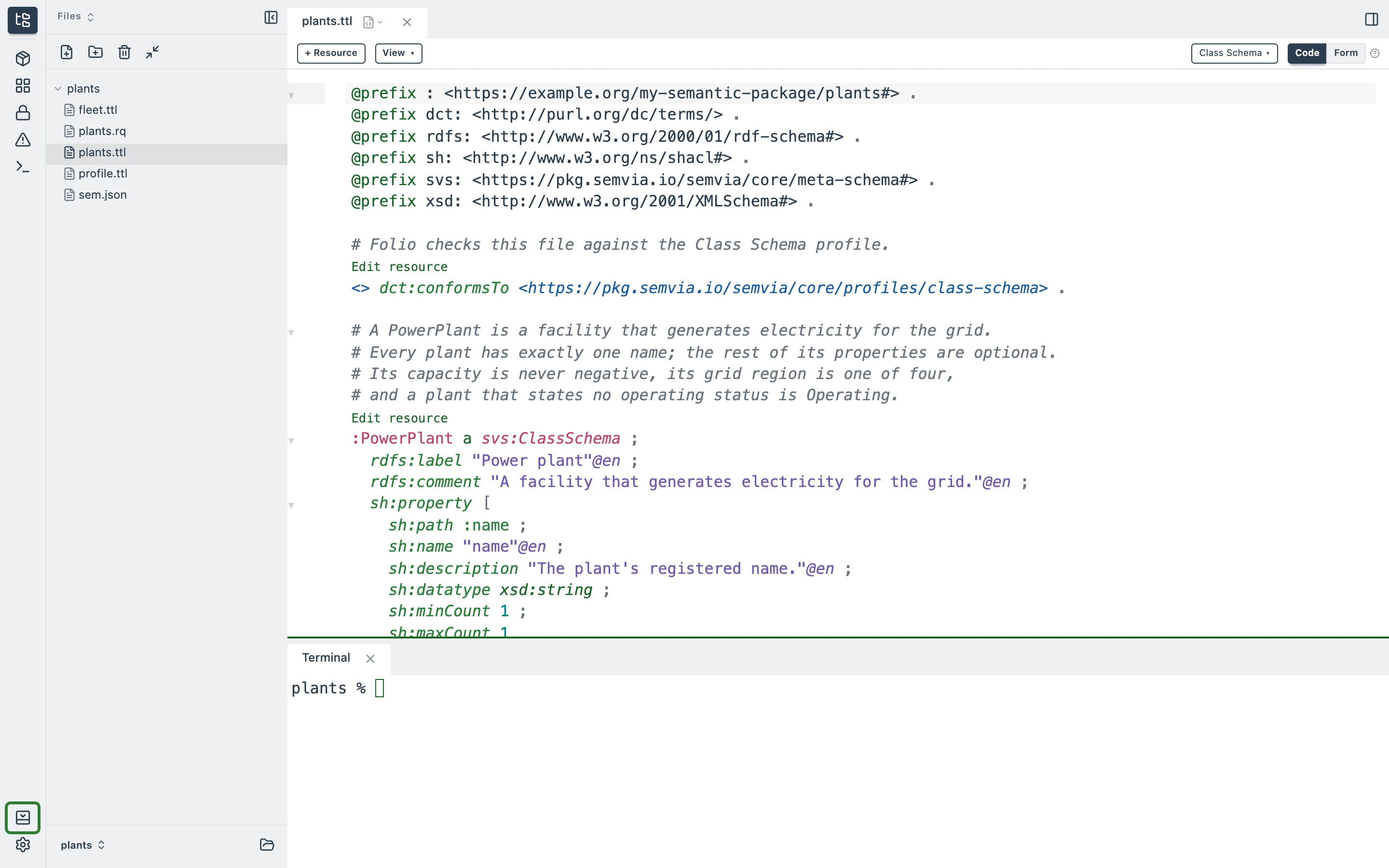
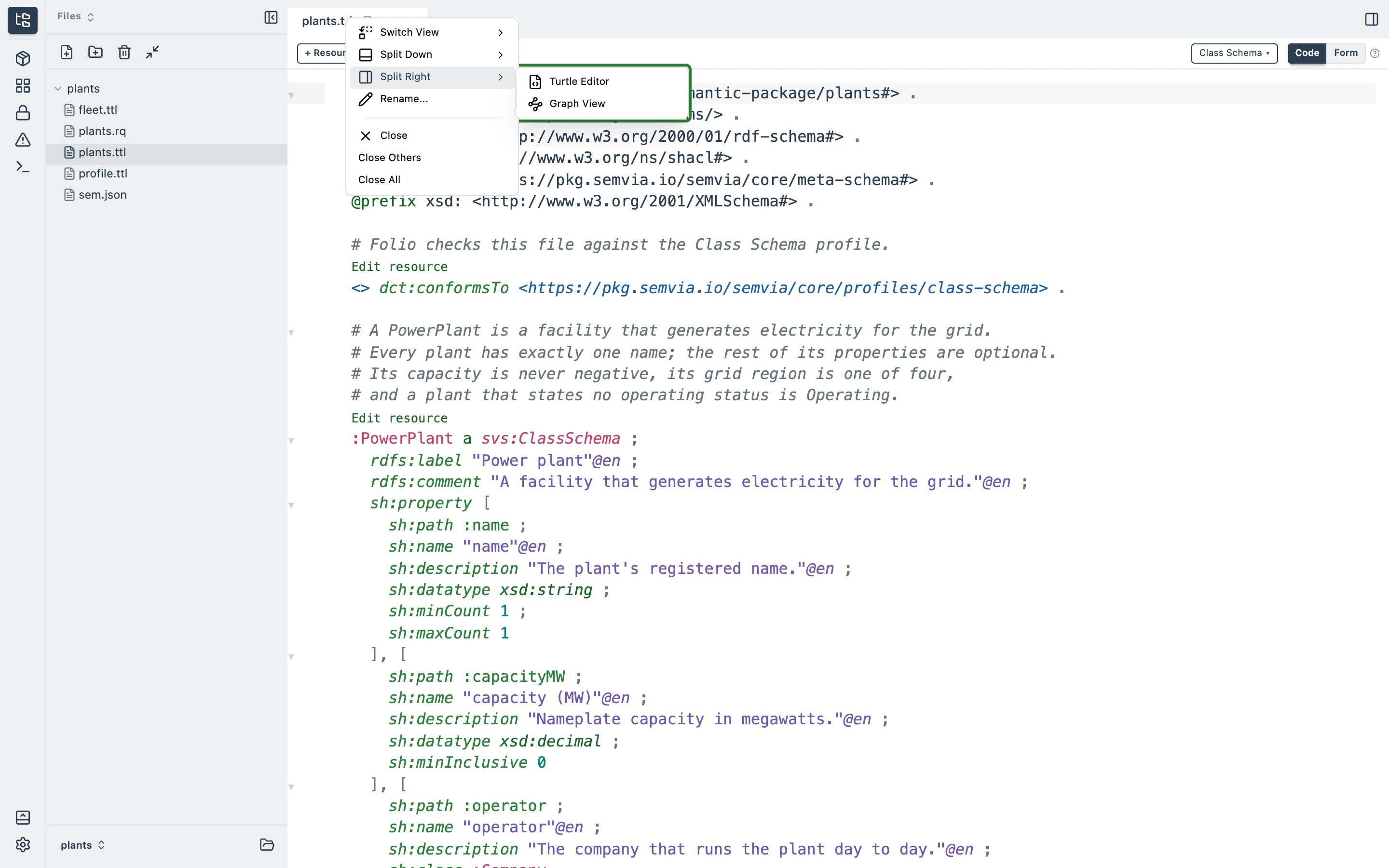
plants.ttl gives the window at the top of this page. The green outline marks the Split Right menu.The Views
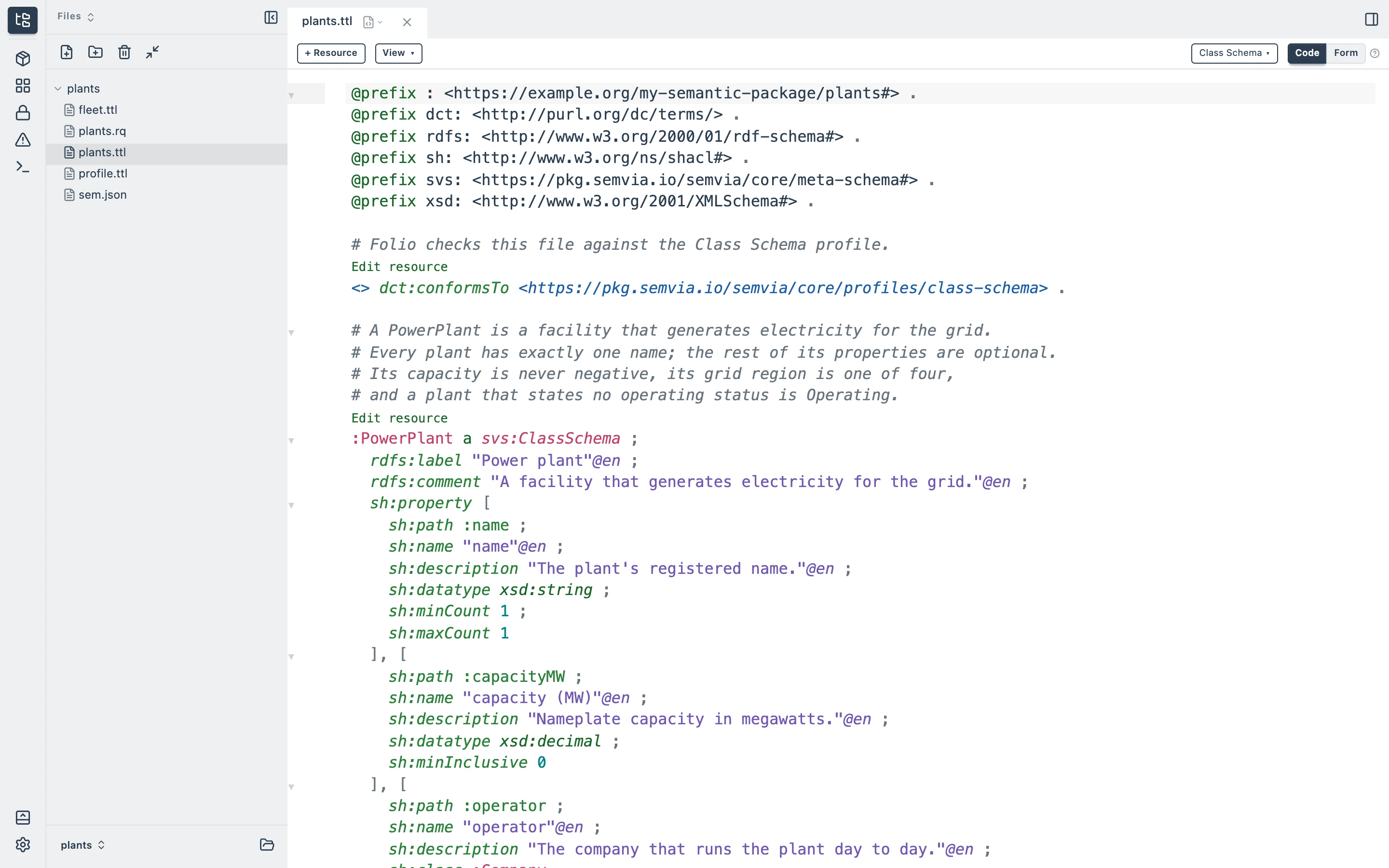
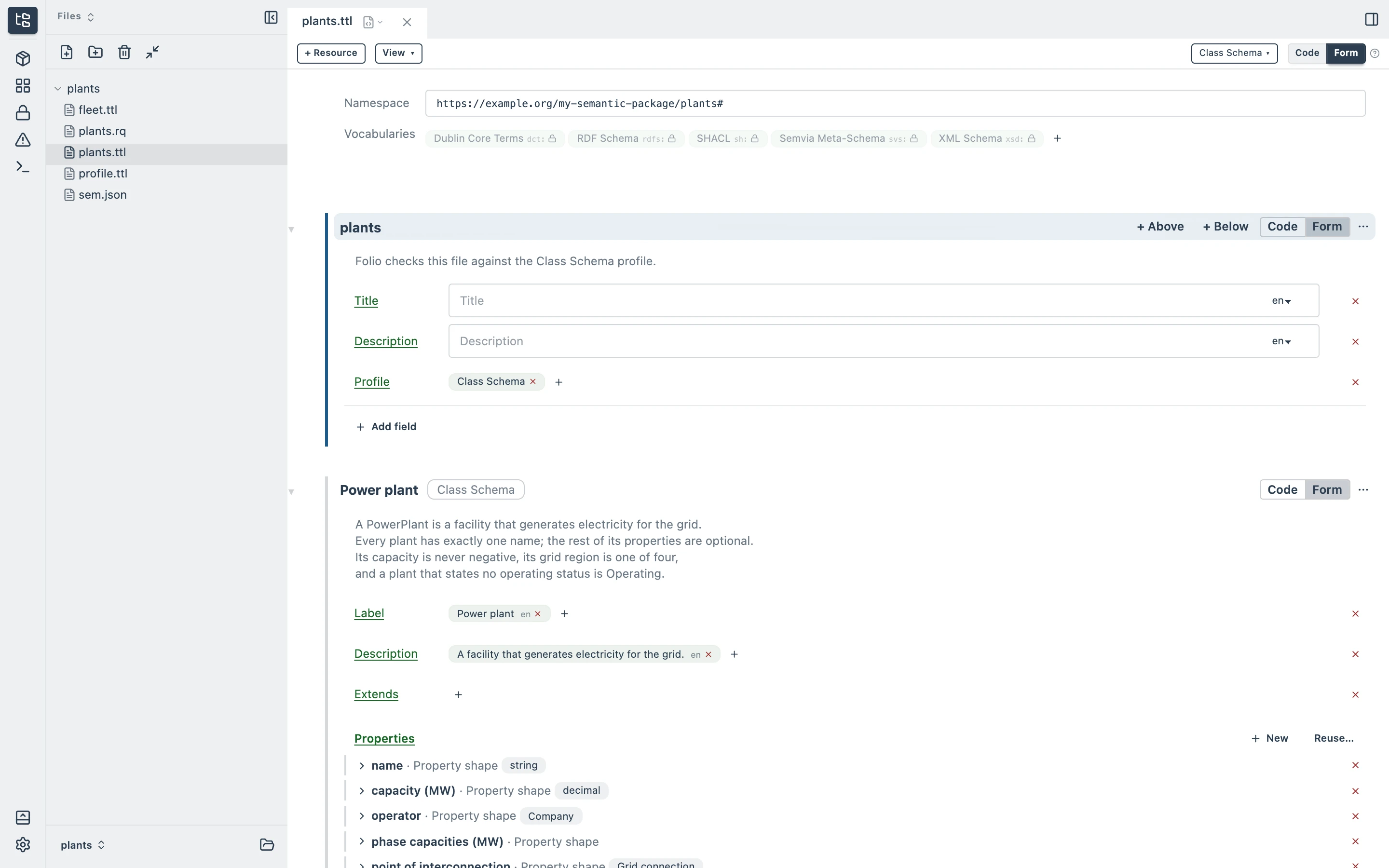
Each view shows your work a different way. Turtle Editor and Graph View display the same underlying file, here plants.ttl, as text, a form or a graph. The SPARQL Editor and Problems views work across the whole workspace.
Turtle Editor
A Turtle file can be viewed as Code or a Form. Code shows the file as text, and Form shows a card for each resource, with a field for each property. plants.ttl holds the domain model, with a class for each kind of plant and for the things a plant refers to, such as the company that operates it. In Folio, a class is represented using RDF Schema (RDFS) and the Shapes Constraint Language (SHACL), two standards built on the Resource Description Framework (RDF), the standard format for graph data. RDFS names a class and the class it specializes, and SHACL lists its properties and the values each one allows. The dct:conformsTo line near the top binds the file to the Class Schema profile, the set of vocabularies and rules Folio checks the file against. See Write Turtle and Form view.
Graph View
The same plants.ttl, drawn as a node for each resource, joined by edges labeled with their properties. Code, Form and Graph View are three views of one file.
fleet.ttl, with its capacity in megawatts.SPARQL Editor
A SPARQL query, saved in a .rq file, asks a question of all the data in the workspace at once. plants.rq asks for each plant's name and capacity, largest first. The plants themselves are described in fleet.ttl, beside the domain model. Click Run or press ⌘Enter (Ctrl+Enter on Windows), and Results shows the answer as a table.
Problems View
Lists every statement in the workspace that breaks a rule its file is checked against, grouped by file. The list updates as you edit, and clicking a problem opens its file. Every file in the workspace passes its checks, so the view reads No problems to report. Model your first class shows one flagged and fixed.